A resource to help you prepare (content) for (the website) service. Here you can find all the basics on how to use this website.
Login to Access the Website Dashboard
WordPress
This website runs on a custom version of WordPress. For in depth information visit the official WordPress.org – Documentation
Pages and Postings
- Pages are major areas on the website (Links at the Top) those can be modified by the Pastor/Clergy only.
- Postings show up on the Home Page of the website with pinned and most recent postings visible first, from there you can browse back in time to see earlier postings.
- Parish Calendar is available on the events page, you can subscribe to have a live copy of all parish events, or add individual events to your own calendar!
- Ministry Pages? if any ministers are interested in having their own section of the parish website carved out for their council, ask the pastor.
Quick How To’s
Featured Images, Excerpts, and Categories
Featured Images are important header images that appear on top of any page or posting, Excerpts are quick summaries used for publications or anywhere posts are listed, and Categories help identify what subject/event/ministry a post pertains to! These aren’t mandatory but are important for the organisation of the website – you can find this any time you edit a posting on the right side menu under the “Post” tab.
Add Files/Images
You can upload Images/Files/Video or Audio in the “Media” Section from the WordPress Dashboard. Or, more directly through the “Add Blocks” prompt in any content editor. After adding media, you can easily link to it by highlighting text and choosing the chain-link icon and searching for the content filename you uploaded!
Front Page News
Pastor/Clergy/Receptionist can make a post “sticky” and pin it to the home page of the website. This will ensure the posting will always show first, good for important on-going announcements. To do this, edit any post you want to stick up front, click into the Post settings side bar, then click right of the “Status” label to change the post status, in the following pop up window click “Sticky” to pin the post.
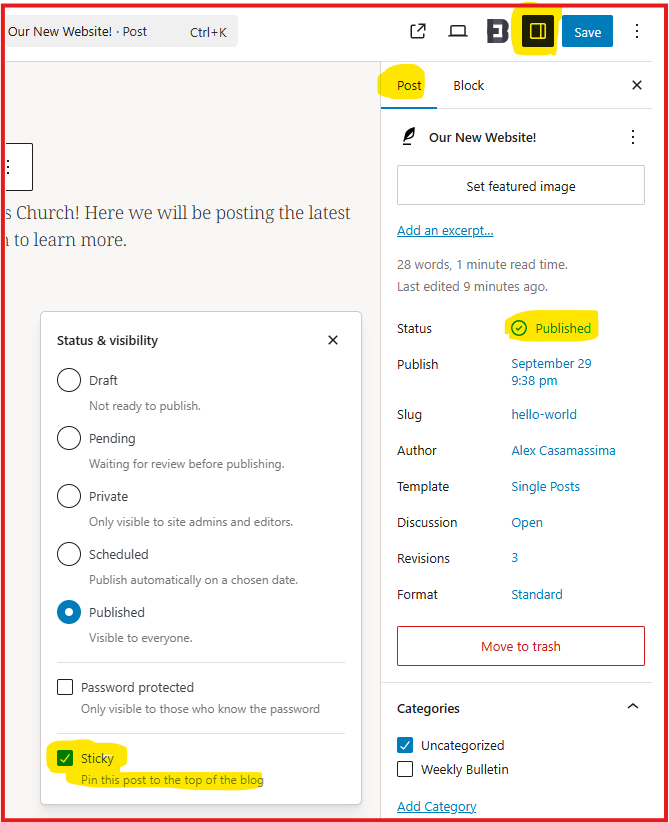
Remember to “un-stick” a post using the same method to avoid blocking new articles from appearing on the home page!
Posting The Bulletin
Similar to any normal post click “Add New Post” to post the bulletin. Be sure to use a consistent title for the post, as this will be seen in a few locations throughout the website. In the post content click [+] to add a block, and search for and click on the block type “File”, this will let you “Upload” the bulletin (Note: PDF File type is recommended). After uploading, on the block settings pane on the right it’s recommended to turn off “Show inline embed” and “Show download button” for consistency, and lastly and most importantly In the post settings, be sure to check the “Weekly Bulletin” category before saving!
Any post with in the ‘Weekly Bulletin’ category will show up on the website home page and event page!
Website Accounts have a role:
Each role can do different things on this website, know your role so you too can use this website to it’s full potential!
Pastor
They can do everything. Add/Change/Remove Accounts, Roles, Articles, Pages, even website design. They operates as the ultimate authority of the website (and parish too!)
Clergy
They can do a lot. Add/Change/Remove Articles and Pages. Any clergy account can be used to moderate content in absence of the Pastor.
Receptionists
Receptionists can operate both as moderators and approve content for publishing. They can also Add/Change/Remove articles themselves.
Lay Ministers
Lay Ministers can Create/Change/Remove Articles but require the Receptionist/Clergy/Pastor to approve them.
Parishioners & Guests
For now, we do not offer parishioner or guest accounts. So there will not be any commenting on articles, discussion boards, or special services available.
Website by Emblaze
Website software, customisation, server, and technical services is built and managed by Emblaze.ca.